Installation
To install software on your machine, follow the instructions below:
Brief intro to the command line
Many of the steps below reference the “console”, “terminal”, “command window”, or “command line” — these all mean the same thing: a window on your computer where you can enter commands. When you get to the main tutorial, you’ll learn more about the command line. For now, the main thing you need to know is how to open a command window and what it looks like:
Go to Launchpad → Other → Terminal.
The Command-line Prompt
Now you know how to open a command line, we just need to understand what the “prompt” is.
If you’re on Mac, you probably see a $, like this:
command-line
$Each command will be prepended by a $ and one space, but you should not type it. Your computer will do it
for you. :)
Just a small note: in your case there may be something like
Olas-MacBook-Air:~ ola$before the prompt sign, and this is 100% OK.
The part up to and including the $ is called the command line prompt, or prompt for short. It prompts
you to input something there.
In the tutorial, when we want you to type in a command, we will include the $, and occasionally more to
the left. Ignore the left part and only type in the command, which starts after the prompt.
Install Python
For readers at home: this chapter is covered in the Installing Python & Code Editor video.
This section is based on a tutorial by Geek Girls Carrots (https://github.com/ggcarrots/django-carrots)
Django is written in Python. We need Python to do anything in Django. Let’s start by installing it! We want you to install the latest version of Python 3, so if you have any earlier version, you will need to upgrade it. If you already have version 3.10 or higher you should be fine.
Please install normal Python as follows, even when you have Anaconda installed on your computer.
Note Before you install Python on macOS, you should ensure your Mac settings allow installing packages that aren’t from the App Store. Go to System Preferences (it’s in the Applications folder), click “Security & Privacy,” and then the “General” tab. If your “Allow apps downloaded from:” is set to “Mac App Store,” change it to “Mac App Store and identified developers.”
You need to go to the website https://www.python.org/downloads/ and download the latest Python installer:
- Download Python 3.12.3,
- Double click python-3.12.3-macos11.pkg to run the installer.
If you have any doubts, or if something went wrong and you have no idea what to do next, please ask your coach! Sometimes things don’t go smoothly and it’s better to ask for help from someone with more experience.
Install a code editor
There are a lot of different editors and it largely boils down to personal preference. Most Python programmers use complex but extremely powerful IDEs (Integrated Development Environments), such as PyCharm. As a beginner, however, that’s probably less suitable; our recommendations are equally powerful, but a lot simpler.
Our suggestions are below, but feel free to ask your coach what their preferences are – it’ll be easier to get help from them.
Visual Studio Code
Visual Studio Code is a source code editor developed by Microsoft for Windows, Linux and macOS. It includes support for debugging, embedded Git control, syntax highlighting, intelligent code completion, snippets, and code refactoring.
Gedit
Gedit is an open-source, free editor, available for all operating systems.
Sublime Text
Sublime Text is a very popular editor with a free evaluation period and it’s available for all operating systems.
Why are we installing a code editor?
You might be wondering why we are installing this special code editor software, rather than using something like Word or Notepad.
The first reason is that code needs to be plain text, and the problem with programs like Word and Textedit is that they don’t actually produce plain text, they produce rich text (with fonts and formatting), using custom formats like RTF (Rich Text Format).
The second reason is that code editors are specialized for editing code, so they can provide helpful features like highlighting code with color according to its meaning, or automatically closing quotes for you.
We’ll see all this in action later. Soon, you’ll come to think of your trusty old code editor as one of your favorite tools. :)
Set up virtualenv and install Django
Part of this section is based on tutorials by Geek Girls Carrots (https://github.com/ggcarrots/django-carrots).
Part of this section is based on the django-marcador tutorial licensed under the Creative Commons Attribution-ShareAlike 4.0 International License. The django-marcador tutorial is copyrighted by Markus Zapke-Gründemann et al.
Virtual environment
Before we install Django we will get you to install an extremely useful tool to help keep your coding environment tidy on your computer. It’s possible to skip this step, but it’s highly recommended to follow it . Starting with the best possible setup will save you a lot of trouble in the future!
So, let’s create a virtual environment (also called a virtualenv). Virtualenv will isolate your Python/Django setup on a per-project basis. This means that any changes you make to one website won’t affect any others you’re also developing. Neat, right?
All you need to do is find a directory in which you want to create the virtualenv; your home directory,
for example. On Windows, it might look like C:\Users\Name\ (where Name is the name of your login).
For this tutorial we will be using a new directory djangogirls from your home directory:
command-line
$ mkdir djangogirls
$ cd djangogirls
We will make a virtualenv called myvenv. The general command will be in the format:
command-line
$ python3 -m venv myvenvWe can create a virtualenv on macOS by running python3 -m venv myvenv.
It will look like this:
command-line
$ python3 -m venv myvenvmyvenv is the name of your virtualenv. You can use any other name, but stick to lowercase and use no
spaces. It is also a good idea to keep the name short as you’ll be referencing it a lot!
Install Git
Git is a “version control system” used by a lot of programmers. This software can track changes to files over time so that you can recall specific versions later. A bit like the “track changes” feature in word processor programs (e.g., Microsoft Word or LibreOffice Writer), but much more powerful.
Installing Git
Download Git from https://git-scm.com/download/mac and follow the instructions.
Note If you are running OS X 10.6, 10.7, or 10.8, you will need to install the version of git from here: Git installer for OS X Snow Leopard
It is recommended to install using brew (you may need to install homebrew if you don’t already have it):
brew install gitPlease note that some Mac M1/M2/M3 users may have the error
zsh: command not found: brew. In that case, please follow this or this to fix the error.
Create a GitHub account
Go to GitHub.com and sign up for a new, free user account. Be sure to remember your password (add it to your password manager, if you use one).
Create a PythonAnywhere account
PythonAnywhere is a service for running Python code on servers “in the cloud”. We’ll use it for hosting our site, live and on the Internet.
We will be hosting the blog we’re building on PythonAnywhere. Sign up for a “Beginner” account on PythonAnywhere (the free tier is fine, you don’t need a credit card).
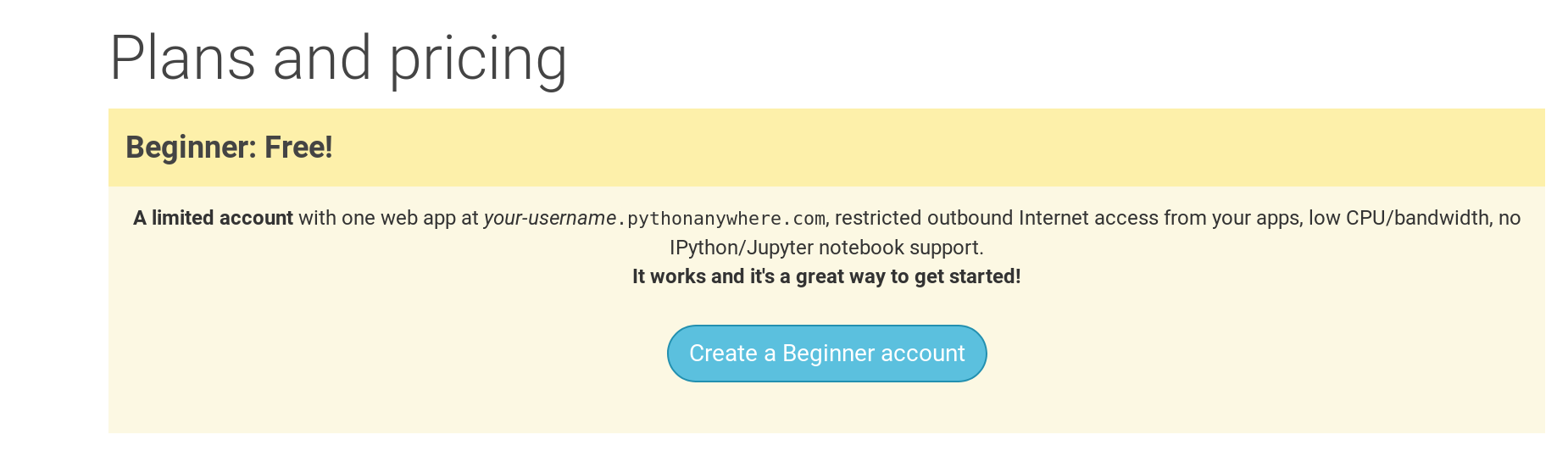
Note When choosing your username here, bear in mind that your blog’s URL will take the form
yourusername.pythonanywhere.com, so choose either your own nickname or a name for what your blog is all about. Also, be sure to remember your password (add it to your password manager, if you use one).
Creating a PythonAnywhere API token
This is something you only need to do once. When you’ve signed up for PythonAnywhere, you’ll be taken to your dashboard. Find the link near the top right to your “Account” page:
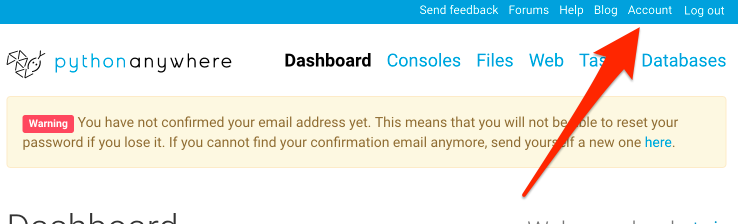
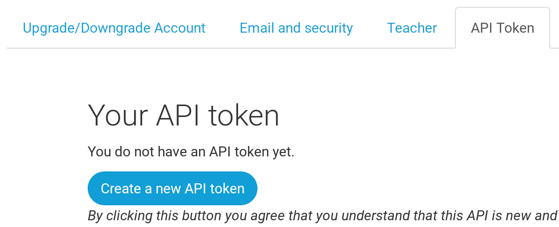
then select the tab named “API token”, and hit the button that says “Create new API token”.
Start reading
Congratulations, you are all set up and ready to go! If you still have some time before the workshop, it would be useful to start reading a few of the beginning chapters:
Enjoy the workshop!
When you begin the workshop, you’ll be able to go straight to Your first Django project! because you already covered the material in the earlier chapters.