Let’s start with Python
We’re finally here!
But first, let us tell you what Python is. Python is a very popular programming language that can be used for creating websites, games, scientific software, graphics, and much, much more.
Python originated in the late 1980s and its main goal is to be readable by human beings (not only machines!). This is why it looks simpler than other programming languages, but don’t worry – Python is also really powerful!
Python installation
Note If you already worked through the installation steps, there’s no need to do this again – you can skip straight ahead to the next chapter!
For readers at home: this chapter is covered in the Installing Python & Code Editor video.
This section is based on a tutorial by Geek Girls Carrots (https://github.com/ggcarrots/django-carrots)
Django is written in Python. We need Python to do anything in Django. Let’s start by installing it! We want you to install the latest version of Python 3, so if you have any earlier version, you will need to upgrade it. If you already have version 3.10 or higher you should be fine.
Please install normal Python as follows, even when you have Anaconda installed on your computer.
First check whether your computer is running a 32-bit version or a 64-bit version of Windows, on the “System type” line of the System Info page. To reach this page, try one of these methods:
- Press the Windows key and Pause/Break key at the same time
- Open your Control Panel from the Windows menu, then navigate to System & Security, then System
- Press the Windows button, then navigate to Settings > System > About
- Search the Windows Start menu for “System Information”. To do that, click the Start button or
press the Windows key, then begin to type
System Information. It will start making suggestions as soon as you type. You can select the entry once it shows up.
You can download Python for Windows from the website https://www.python.org/downloads/windows/. Click on the “Latest Python 3 Release - Python x.x.x” link. If your computer is running a 64-bit version of Windows, download the Windows x86-64 executable installer. Otherwise, download the Windows x86 executable installer. After downloading the installer, you should run it (double-click on it) and follow the instructions there.
One thing to watch out for: During the installation, you will notice a window marked “Setup”. Make sure you tick the “Add Python 3.12 to PATH” or ‘Add Python to your environment variables” checkbox and click on “Install Now”, as shown here (it may look a bit different if you are installing a different version):
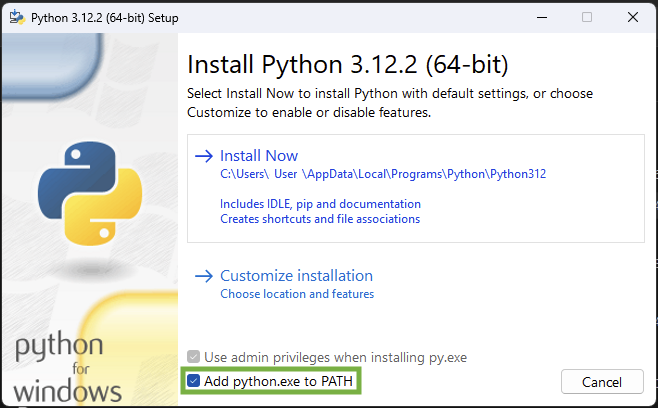
When the installation completes, you may see a dialog box with a link you can follow to learn more about Python or about the version you installed. Close or cancel that dialog — you’ll be learning more in this tutorial!
Note: If you are using an older version of Windows (7, Vista, or any older version) and the Python 3.12 installer fails with an error, then install all Windows Updates and try to install Python again. If you still have the error, try installing Python version 3.12 from Python.org.
Django 5.2.8 needs Python 3.12 or greater, which does not support Windows XP or earlier versions.
NOTE: If you’re on Windows and you get an error message that python3 wasn’t found, try using
python (without the 3) and check if it still might be a version of Python that is
3.12 or higher. If that doesn’t work either, you may open a new command prompt and
try again; this happens if you use a command prompt that was opened before the Python installation.
If you have any doubts, or if something went wrong and you have no idea what to do next, please ask your coach! Sometimes things don’t go smoothly and it’s better to ask for help from someone with more experience.